pryanicom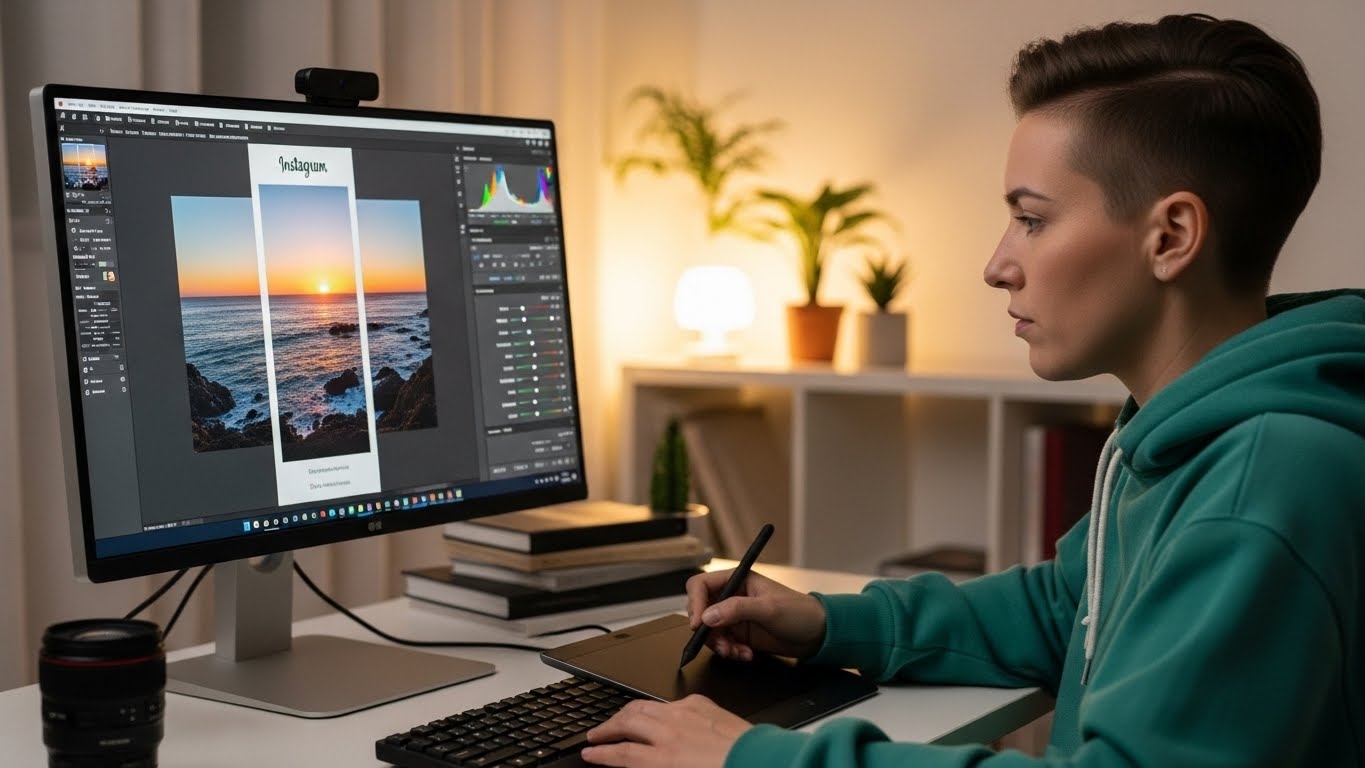
Remember the days when crafting Instagram content meant a constant dance between your desktop editing suite and your smartphone’s upload button? That era, fraught with Airdrops, cloud transfers, and the occasional email-to-self, feels like a distant memory for many creators. For years, the platform, synonymous with mobile photography, stubbornly kept its primary publishing tools confined to handheld devices. This created a workflow bottleneck for professionals and enthusiasts alike, forcing a clunky migration of high-resolution assets from powerful editing machines to smaller screens. The sheer inefficiency was a constant lament among those who poured hours into perfecting their visuals.
Then, a significant shift occurred. In 2021, Instagram finally answered the persistent calls from its user base, rolling out the capability to post directly from a personal computer. This wasn’t just a minor update; it was a fundamental acknowledgment of how content creation had evolved. Initially, this newfound freedom was focused squarely on regular photo and video posts. Think single images, carousels, and standard video clips – the foundational elements of any feed. While it didn’t immediately unlock every feature, this initial step was a monumental leap, signaling a future where the desktop could finally play a central role in a creator’s Instagram strategy. It transformed a cumbersome, multi-device process into a streamlined, single-interface operation, opening doors for greater efficiency and higher-quality output.

Direct Desktop Posting: Process and Current Constraints
For years, the Instagram experience was inextricably linked to mobile devices, a design choice that, while fostering spontaneity, often frustrated those managing complex content strategies. However, since its introduction in 2021, native desktop posting has offered a direct, albeit streamlined, pathway for creators to publish content from their larger screens. This functionality has become a cornerstone for many digital strategists and content creators, as the ability to manage Instagram content from a desktop environment represents a significant shift in workflow efficiency. Let’s dissect the process and then confront its inherent limitations.
Your Desktop Publishing Workflow
Publishing a standard photo or video post directly from your desktop browser is a straightforward affair, designed for ease of use. Here’s how you navigate it:

- Access Instagram: Open your preferred web browser and navigate to Instagram.com. Log in to your account.
- Initiate Post: Locate the prominent ‘+ Create’ button, typically found in the left-hand navigation panel. Clicking this opens the media upload interface.
- Select Media: A window will prompt you to “Select from computer.” Browse your local files and choose the image or video you wish to upload. Instagram supports a variety of common file formats.
- Adjust and Crop: Once uploaded, you’ll enter the editing stage. Here, you can adjust the aspect ratio of your media (original, 1:1, 4:5, 16:9) and perform basic cropping. This ensures your visual fits Instagram’s display parameters perfectly.
- Apply Filters (Optional): A limited selection of Instagram’s signature filters is available. While not as extensive as the mobile app’s suite, these can add a quick stylistic touch. You can also fine-tune basic adjustments like brightness and contrast.
- Craft Your Caption: This is where your narrative takes shape. Type your caption, include relevant hashtags, and tag other accounts using the ‘@’ symbol. You can also add a location to your post, enhancing discoverability.
- Advanced Settings: Before publishing, explore the “Advanced settings” option. Here, you can write alt text for accessibility (a crucial step for inclusive content), turn off commenting, and specify audience settings.
- Share: With all elements in place, click the ‘Share’ button. Your post will go live instantly.
This direct method provides a solid foundation for basic content distribution, leveraging the precision of a desktop interface for media selection and captioning.
Significant Creative Restrictions
While native desktop posting offers undeniable convenience for standard posts, it’s crucial to understand its current boundaries. As of 2026, the functionality remains notably constrained compared to the mobile application. The platform’s direct desktop interface prioritizes core posting over comprehensive creative tools or advanced content formats.

The most prominent limitations include:
- No Reels Posting: The dynamic, short-form video format that dominates engagement cannot be uploaded or created directly from the desktop. This necessitates a mobile workflow for a significant portion of video content.
- No Stories Creation: The ephemeral, full-screen Story format, essential for daily updates and interactive content, is entirely absent from the desktop interface.
- No Scheduling: Unlike many third-party management tools, the native desktop platform offers no built-in scheduling capabilities. Posts go live immediately upon clicking ‘Share’.
- Limited Creative Tools: Beyond basic cropping and a handful of filters, the robust suite of editing tools, stickers, music integration, and interactive elements found on the mobile app are unavailable. This means any sophisticated visual or interactive elements must be prepared externally before upload.
To illustrate these disparities, consider the following:

| Feature/Functionality | Native Desktop Posting | Mobile App Posting |
|---|---|---|
| Photo/Video Upload | Yes | Yes |
| Reels Creation | No | Yes |
| Stories Creation | No | Yes |
| Post Scheduling | No | No (Native) |
| Basic Filters | Limited selection | Extensive selection |
| Advanced Editing | Minimal | Comprehensive |
| Interactive Stickers | No | Yes |
| Music Integration | No | Yes |
| Drafts Saving | No | Yes |
These restrictions mean that while the desktop option is excellent for publishing polished, pre-edited photos and videos, it falls short for creators who rely heavily on Instagram’s more dynamic and interactive features. Understanding these constraints is the first step toward optimizing your broader Instagram content strategy.
Beyond Native: Mastering Desktop Instagram Publishing
While Instagram’s direct desktop interface offers a basic entry point for content creators, the true power of desktop publishing unfolds when leveraging robust third-party management platforms. These sophisticated tools transform a limited web experience into a comprehensive content hub, empowering marketers and brands to orchestrate their Instagram presence with unparalleled precision and efficiency. In 2026, relying solely on the native browser interface means leaving significant strategic advantages on the table.

Leveraging Management Platforms
Platforms like Hootsuite, Sprout Social, and Buffer are not merely scheduling tools; they are integrated command centers for social media operations. They bridge the functional gap left by Instagram’s native desktop offering, providing a unified dashboard to manage multiple accounts, collaborate with teams, and access advanced analytics. This ecosystem approach is critical for maintaining brand consistency and streamlining workflows, especially for agencies or businesses managing a substantial content calendar. The ability to visualize an entire week or month of content across various platforms, including Instagram, from a single screen fundamentally alters productivity.
Scheduling Regular Posts
The cornerstone of any effective content strategy is consistency, and third-party platforms excel at enabling this from a desktop environment. Gone are the days of setting phone alarms to manually publish posts. With tools like Hootsuite, you can upload high-resolution images and videos directly from your PC, craft detailed captions, apply relevant hashtags, and tag accounts or locations—all within a familiar desktop interface. The real game-changer, however, is the scheduling capability. You can pre-plan and queue weeks or even months of regular feed posts, ensuring a steady stream of content without constant manual intervention. This feature is indispensable for maintaining an active presence and engaging audiences at optimal times, regardless of your immediate availability.

Crafting Desktop Stories
Perhaps one of the most significant advantages of third-party platforms is the ability to publish Instagram Stories directly from your desktop. Native Instagram still restricts Story creation to mobile devices, forcing a cumbersome transfer process for professionally produced content. Management tools bypass this limitation, allowing you to upload pre-designed, high-quality Story assets created with desktop editing software. This means no more emailing files to your phone or dealing with resolution compromises. You can maintain a consistent brand aesthetic across all Story elements, from custom fonts to intricate graphic overlays, ensuring your ephemeral content is as polished as your permanent feed.
| Feature | Native Instagram Desktop (2026) | Third-Party Platforms (e.g., Hootsuite) |
|---|---|---|
| Regular Posts | Yes | Yes |
| Scheduling Posts | No | Yes |
| Stories Posting | No | Yes |
| Reels Posting | No | Yes |
| Draft Saving | Limited | Yes |
| Team Collaboration | No | Yes |
| Advanced Analytics | Basic | Comprehensive |
Producing Desktop Reels
The explosive growth of Instagram Reels demands a robust content creation pipeline. While the native desktop interface still doesn’t support direct Reels uploads, third-party platforms have stepped in to fill this void. These tools allow you to upload pre-edited video content, often crafted using professional desktop video editing suites like Adobe Premiere Pro or DaVinci Resolve, directly as Reels. This workflow ensures superior video quality, precise editing, and the integration of complex visual effects or audio tracks that are simply not feasible within the confines of a mobile app. By enabling desktop-first Reels production, brands can consistently deliver high-impact, engaging short-form video content that captures attention and drives discovery.

Streamlining Your Instagram Desktop Workflow
Optimizing your content creation and publishing workflow is not merely a suggestion; it’s a strategic imperative for any brand or creator serious about their presence. While Instagram’s mobile interface offers convenience, the desktop environment unlocks a realm of efficiency and precision. Leveraging your PC for Instagram posting transforms a potentially fragmented process into a cohesive, high-impact operation. Here are three pivotal strategies to refine your approach.
Plan Content Ahead
The cornerstone of any effective content strategy is meticulous planning. For Instagram desktop posting, this means moving beyond reactive, on-the-fly uploads. Instead, embrace a proactive approach by developing a robust content calendar. This allows for batch creation of visuals and captions, ensuring thematic consistency and freeing up valuable time. Imagine crafting a week’s worth of posts in a single dedicated session, complete with optimized hashtags and compelling calls to action. This strategic foresight is far more manageable on a larger screen, using familiar desktop tools for organization.

| Aspect | Ad-Hoc Mobile Posting | Planned Desktop Posting |
|---|---|---|
| Content Quality | Often rushed, inconsistent | High-quality, brand-aligned |
| Time Efficiency | Fragmented, frequent interruptions | Batch processing, focused work |
| Strategic Depth | Reactive, opportunistic | Proactive, goal-oriented |
| Error Rate | Higher potential for typos/mistakes | Lower, due to review and refinement |
Avoid Mobile Distractions
One of the most insidious productivity killers is the constant barrage of notifications and the inherent temptation of other apps on a mobile device. When you switch to desktop for Instagram posting, you inherently create a more focused work environment. This isn’t just about the larger screen; it’s about the psychological shift. By dedicating your desktop to content creation and scheduling, you can minimize context switching and enter a state of deep work. Activate “Do Not Disturb” modes on your computer, close unnecessary tabs, and experience the profound difference a distraction-free zone makes. This focused approach ensures your attention remains squarely on crafting compelling content, not on the latest trending Reel or direct message.
Utilize Desktop Editing Tools
The visual quality of your Instagram content directly impacts engagement and brand perception. While mobile editing apps have advanced considerably, they simply cannot rival the power, precision, and feature sets of professional desktop editing software. Think about the granular control offered by applications like Adobe Photoshop or Lightroom for image manipulation, or DaVinci Resolve and Adobe Premiere Pro for video editing. These tools provide capabilities for non-destructive editing, advanced color grading, intricate compositing, and precise typography that are virtually impossible to replicate on a small screen. Preparing your visuals and videos on a desktop ensures every pixel is perfect, every frame is polished, and your brand’s aesthetic is consistently elevated before you even consider uploading.

| Feature | Mobile Editing Apps | Desktop Editing Software |
|---|---|---|
| Precision Control | Limited, finger-based | Pixel-level, mouse/tablet input |
| Layer Management | Basic or non-existent | Advanced, complex compositions |
| Color Grading | Presets, limited manual adjustment | Professional-grade, granular control |
| File Handling | Often compressed, limited formats | High-resolution, diverse formats |
| Performance | Device-dependent, can be slow | Leverages powerful hardware, faster |
| Non-Destructive Edit | Rare, often applies permanent changes | Standard, preserves original data |
By integrating these three workflow optimizations, your Instagram desktop posting strategy transcends mere convenience. It becomes a powerful engine for consistent, high-quality content delivery, ultimately strengthening your brand’s presence and fostering deeper audience connection.
FAQ
What are optimal media specifications?
Use high-resolution JPG/PNG for images. MP4 is best for video content.
Are third-party tools secure?
Reputable tools employ strong encryption. Always verify permissions granted.
Can I manage direct messages from desktop?
Yes, Instagram's desktop interface allows full direct message management.
Can I tag people or locations?
Yes, direct desktop posting supports tagging accounts. Location tagging is also available.