pryanicom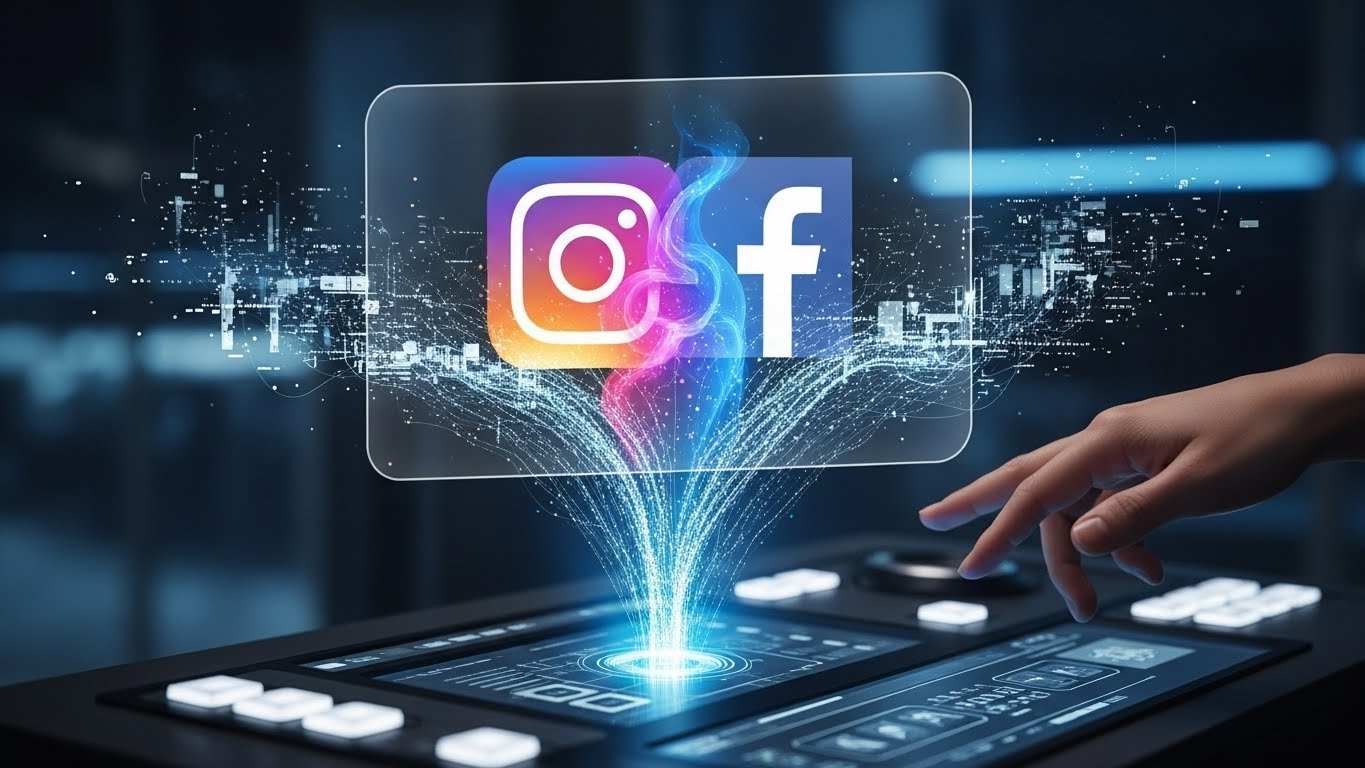
Imagine a single command center for your entire social presence, a nexus where every action on one platform amplifies the other. Is your brand truly leveraging its full potential across the interconnected web of consumer touchpoints? The answer, for many, lies in the often-underestimated power of linking your Instagram account to its Facebook Page counterpart. This isn’t merely a convenience; it’s a fundamental architectural decision that transforms two distinct platforms into a unified, formidable engine for growth and engagement.
Streamlined Cross-Platform Management and Communication
Consider the operational efficiency gained when managing content and communication from a single interface. This integration means you’re no longer juggling separate dashboards, but rather orchestrating your brand’s narrative from a centralized hub. It’s like having a universal remote for your entire media ecosystem, ensuring consistency and reducing the potential for oversight.
Enhanced Customer Trust and Seamless Interactions
A linked presence projects an image of professionalism and cohesion. When customers see a unified brand identity and consistent messaging across both platforms, it builds immediate credibility. This seamless interaction fosters trust, reassuring your audience that they’re engaging with a legitimate, well-managed entity, whether they discover you through a captivating Instagram Reel or a targeted Facebook ad.
Efficient Content Scheduling Across Platforms
Gone are the days of manually posting the same content twice. Linking enables sophisticated scheduling tools that deploy your content with precision across both platforms simultaneously. This frees up invaluable time, allowing your team to focus on creative development and strategic planning rather than repetitive manual tasks.
Centralized Message Management for Quicker Responses
Customer inquiries, comments, and direct messages can quickly become overwhelming. With integration, all communications funnel into a single inbox, ensuring no message goes unnoticed. This centralized approach drastically reduces response times, enhancing customer satisfaction and demonstrating your brand’s commitment to attentive service.
Deeper Performance Insights and Audience Comparison
Unlocking the full suite of analytics tools provides an unparalleled view into your audience’s behavior. You gain a holistic understanding of engagement metrics, demographic overlaps, and content performance across both platforms. This comparative data is invaluable, revealing nuanced insights that inform more effective content strategies and advertising campaigns.
Optimized Advertising Capabilities Across Both Platforms
The true advertising prowess of these platforms emerges when they are linked. This integration unlocks advanced targeting options, allowing you to create highly specific audience segments and deploy campaigns that reach users across both Instagram and Facebook. It’s about maximizing your ad spend with precision, driving higher conversion rates and a superior return on investment.
Enabling Instagram Shop Functionality and Business Features
For businesses, linking is the gateway to unlocking Instagram’s most powerful commerce features. From enabling Instagram Shop, allowing direct product tagging and in-app purchases, to accessing detailed business profiles and call-to-action buttons, this connection is indispensable for any brand looking to convert social engagement directly into sales.
Connecting Instagram to Facebook: A Detailed Guide
Unlocking the full potential of your brand’s presence across Meta’s ecosystem begins with a foundational step: linking your Instagram account to its corresponding Facebook Page. This isn’t merely a convenience; it’s a strategic maneuver that consolidates your digital efforts, streamlines communication, and amplifies your reach. Getting this connection right from the outset ensures you’re poised to leverage powerful cross-platform functionalities.
Before diving into the mechanics, it’s crucial to understand the foundational requirements. This integration isn’t just about clicking a button; it demands specific access levels and account types to function correctly. The ability to link these two powerful platforms is a cornerstone for streamlined cross-platform management and communication, enhanced customer trust, efficient content scheduling, centralized message management for quicker responses, deeper performance insights, optimized advertising capabilities, and enabling Instagram Shop functionality. Without these prerequisites, the connection simply won’t materialize, leaving valuable opportunities untapped.
Prerequisites for Connection: Admin Access and Business Account
To forge this vital link, two non-negotiable conditions must be met. First, you must possess Admin access to the Facebook Page you intend to connect. Facebook’s permission structure is robust, and only an Admin holds the keys to critical page settings, including account integrations. If you’re operating under a different role, such as Editor or Moderator, you’ll need to request an upgrade from an existing Admin. This ensures that only authorized personnel can make significant changes to the page’s infrastructure.
Second, your Instagram profile must be an Instagram Business Account. Personal Instagram accounts, while perfectly suitable for individual use, lack the infrastructure required for professional integration with a Facebook Page. Converting a personal account to a business account is a straightforward process within Instagram’s settings and unlocks a suite of features essential for brand management, including access to analytics, advertising tools, and direct contact options. This distinction is paramount for anyone serious about leveraging Instagram for commercial purposes.
Here’s a quick comparison of why the Business Account is indispensable:
| Feature | Instagram Personal Account | Instagram Business Account |
|---|---|---|
| Facebook Page Link | No | Yes |
| Professional Dashboard | No | Yes |
| Insights & Analytics | Limited | Comprehensive |
| Advertising Tools | No | Yes |
| Contact Buttons | No | Yes |
| Shopping Features | No | Yes |
Connecting from Facebook: Navigating Pages and Settings
The most common pathway to link your accounts is initiated directly from your Facebook Page. This method is often preferred for its clarity and the immediate visibility of the connection status within your Page’s backend.
- Access Your Facebook Page: From your personal Facebook profile, navigate to the specific Facebook Page you manage. You can typically find this under the ‘Pages’ section in the left-hand menu.
- Enter Page Settings: Once on your Page, locate the ‘Settings’ option. In 2026, this is usually found in the left-hand navigation panel or sometimes under a ‘Manage Page’ dropdown at the top.
- Locate Linked Accounts: Within the Settings menu, scroll down the left-hand sidebar until you find ‘Linked Accounts’ or, in some interfaces, a direct ‘Instagram’ option. Select this.
- Initiate Connection: You’ll see an option to ‘Connect Account’. Click this button.
- Authenticate Instagram: A pop-up window will appear, prompting you to log in to your Instagram account. Enter your Instagram username and password. Ensure you’re logging into the correct Business Account.
- Confirm and Finalize: After successful login, Facebook will ask for confirmation to link the accounts. Review the permissions and confirm. Your Instagram account should now appear as connected within your Facebook Page settings.
Connecting from Instagram: Profile Editing and Page Selection
Alternatively, you can establish the connection directly from the Instagram application itself. This method is particularly convenient if you’re primarily managing your brand’s presence from your mobile device.
- Open Instagram and Go to Profile: Launch the Instagram app on your mobile device and navigate to your profile page by tapping your profile picture icon in the bottom right corner.
- Access Profile Editing: Tap the ‘Edit Profile’ button located directly below your bio.
- Find Page Connection: Scroll down within the ‘Edit Profile’ screen. Under the ‘Public Business Information’ or ‘Profile Information’ section, you should see an option labeled ‘Page’. Tap on this.
- Select or Create Page: Instagram will present you with two choices: ‘Connect an Existing Page’ or ‘Create a New Facebook Page’. Since you’re linking to an established Page, select ‘Connect an Existing Page’.
- Choose Your Facebook Page: A list of Facebook Pages you have Admin access to will appear. Select the correct Facebook Page from this list.
- Confirm Connection: Instagram will then confirm the link. Once complete, your Instagram Business Account is officially tethered to your Facebook Page, ready to harness the integrated power of both platforms.
With either method, a successful connection immediately unlocks a wealth of cross-platform capabilities, setting the stage for more efficient content distribution, unified messaging, and comprehensive performance analysis.
Seamless Transitions: Managing Your Instagram Page Connection
Even the most meticulously planned digital strategies require flexibility. Brands evolve, ownership shifts, or perhaps a new strategic direction necessitates a change in how your Instagram presence integrates with your broader Meta ecosystem. Understanding how to deftly disconnect and then re-link your Instagram account to a different Facebook Page is a pivotal skill for any digital architect in 2026. This isn’t merely about severing a link; it’s about orchestrating a precise transition to maintain continuity and unleash new synergies.
Unlinking Your Facebook Page
The process of disconnecting an existing Facebook Page from your Instagram account is straightforward, yet its implications are significant. When you unlink, you immediately cease all cross-platform posting, centralized messaging, and shared insights that were previously flowing between the two assets. This action effectively isolates your Instagram account, making it an independent entity once more until a new connection is established.
To perform this crucial operation, the Meta Business Suite is your command center.
| Action Step | Detail |
|---|---|
| Navigate to Settings | From your Meta Business Suite dashboard, locate ‘Settings’ in the left-hand navigation pane. |
| Locate Connected Accounts | Within the Settings menu, find ‘Connected Accounts’ or ‘Business Assets’. This is where all your integrated platforms reside. |
| Select Instagram | Click on the specific Instagram account you wish to manage. You’ll see its currently linked Facebook Page. |
| Initiate Disconnection | Next to the linked Facebook Page, you’ll find an option to ‘Disconnect’ or ‘Remove’. Select this. |
| Confirm Action | A confirmation prompt will appear, detailing the features you’ll lose (e.g., cross-posting, shared inbox, advertising capabilities). Confirm your decision. |
Once confirmed, the link is severed. Your Instagram account will revert to a standalone business profile, or if it was previously a personal account, it will return to that state. This is a clean break, but remember, any scheduled posts that relied on the Facebook Page connection will likely fail.
Reconnecting to a New Page
After disconnecting, the path to re-establishing a robust, integrated presence involves linking your Instagram account to a different Facebook Page. This is often done to align with a new brand identity, consolidate operations under a different primary page, or simply correct a previous misconfiguration. The goal is to restore those powerful cross-platform functionalities.
You have two primary avenues for initiating this new connection:
- From Meta Business Suite:
- Return to ‘Settings’ > ‘Connected Accounts’ within Meta Business Suite.
- Select your Instagram account.
- Instead of ‘Disconnect’, you’ll now see an option to ‘Connect a Facebook Page’ or ‘Add Page’.
- Follow the prompts to select the desired new Facebook Page from your available options. Crucially, ensure you have full admin access to this target page.
- Confirm the connection, granting the necessary permissions.
- From the Instagram Mobile App:
- Open your Instagram profile.
- Tap ‘Edit Profile’.
- Under ‘Public Business Information’, tap ‘Page’.
- Choose ‘Connect an Existing Page’.
- Select the new Facebook Page you wish to link from the list of pages you manage.
- Confirm the connection.
Critical Considerations for Page Management
When performing these operations, always verify your administrative permissions. You must have full admin access to both the Instagram account and the Facebook Page you intend to link or unlink. Without these granular permissions, the options simply won’t appear, leading to unnecessary frustration.
The power of these platforms lies in their interconnectedness. Disconnecting and reconnecting isn’t a setback; it’s a strategic maneuver. It allows businesses to pivot, refine their digital footprint, and ensure that their Instagram presence is always aligned with the most current and relevant Facebook Page, maximizing every opportunity for engagement, insight, and advertising efficacy. This flexibility ensures your brand can adapt and thrive, no matter how rapidly your strategic imperatives shift.
FAQ
What if linking encounters errors?
Check admin permissions, account status, or app versions. Clear cache. Reattempt.
How does data privacy change after linking?
Data sharing between platforms increases. Review Meta's privacy policy for specifics.
What specific platform tools integrate?
Meta Business Suite provides unified inbox, comprehensive reporting, and ad management.
What if the Facebook Page is deleted?
Instagram loses linked features. Re-link to a new page or revert to a personal account.