pryanicom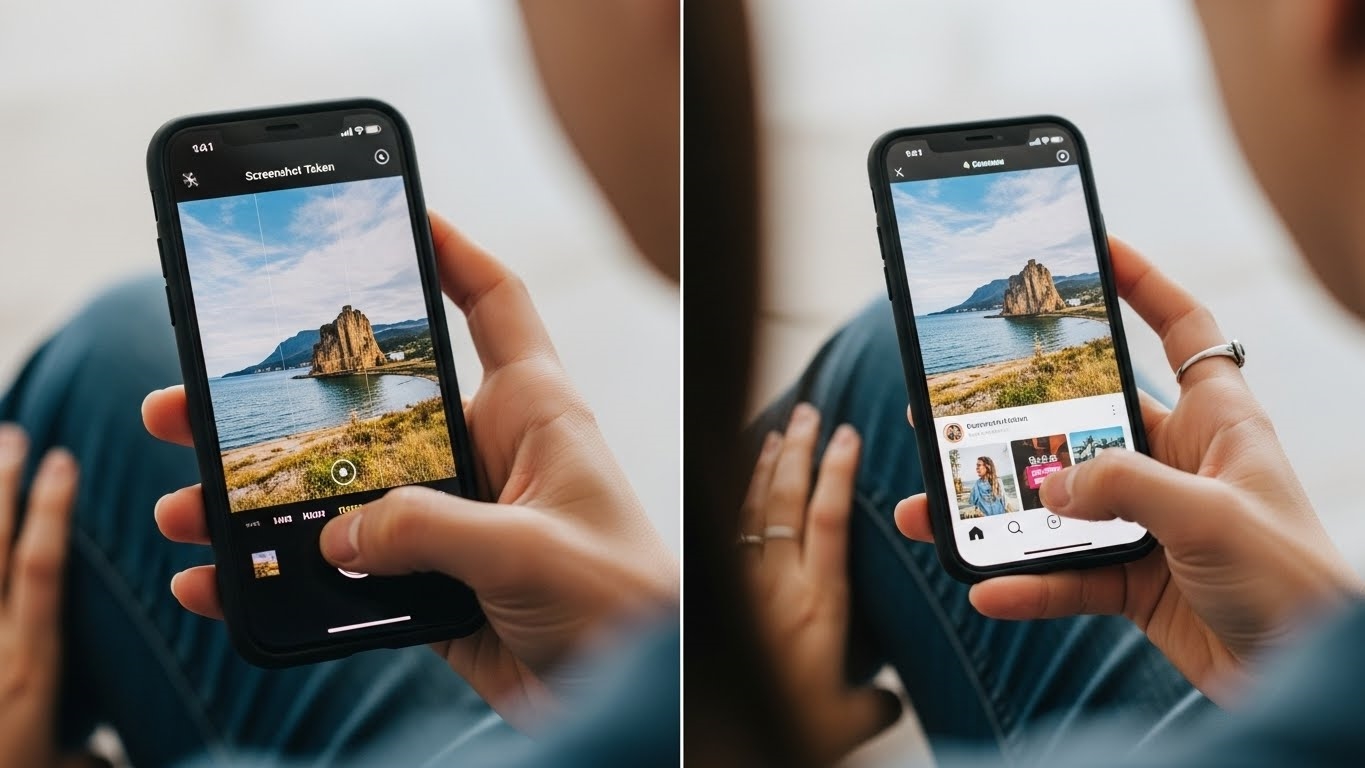
Ever wondered if that quick capture of a friend’s Story or a competitor’s post sends a digital flare straight to their inbox? The question of Instagram screenshot notifications is a persistent one, often shrouded in rumor and outdated information. In 2026, understanding these nuances is crucial for both content creators and savvy users navigating the platform’s intricate privacy settings. The truth is, Instagram’s policy isn’t a blanket rule; it’s a carefully segmented approach that hinges entirely on the type of content you’re capturing.
This distinction is paramount. While many assume a universal notification system, Instagram has deliberately designed its platform to offer varying levels of privacy around content capture. Knowing precisely when your screenshot activity is logged and when it remains your secret can profoundly impact your content strategy and your personal interactions.
Stories and Posts: The Silent Capture
Here’s the liberating truth for most of your casual captures: Instagram maintains a steadfast silence when it comes to screenshots of public content. Whether you’re saving a captivating visual from a Story—even one shared exclusively with ‘Close Friends’—or archiving a brilliant feed post, the original creator remains entirely unaware. This extends to profile pages too; want to save a profile layout for inspiration? Go right ahead. Taking a screenshot of an Instagram profile does not send a notification to the profile owner. This design choice empowers users to save inspiration and revisit content without fear of alerting the original poster, fostering a more open environment for content consumption.
Direct Messages: The Vanishing Act’s Warning
The plot thickens significantly when we venture into Direct Messages (DMs). This is where Instagram’s privacy protocols introduce a critical distinction. For standard text conversations or non-ephemeral media—think photos or videos sent as permanent attachments—your screenshot remains your secret. However, beware the vanishing act. If you screenshot a photo or video sent with the ‘view once’ or ‘allow replay’ option, Instagram will notify the sender. This is a deliberate design choice, reinforcing the ephemeral nature of such content and ensuring that the sender’s expectation of privacy for disappearing media is upheld. It’s a stark reminder that not all content is created equal in the eyes of Instagram’s notification system.
How to Screenshot Instagram Content
Capturing a fleeting moment or a crucial piece of information from Instagram doesn’t have to be a puzzle. Whether it’s a stunning visual, an insightful comment, or a product you absolutely need to remember, knowing the precise method to grab a screenshot across various devices is an indispensable skill. It’s about empowering yourself to save what matters, right when it appears on your screen.
Understanding the mechanics of capturing content from Instagram is more than just a technical exercise; it’s about leveraging the platform for personal utility, whether that’s saving an inspirational quote, an outfit idea, or a direct message you need to reference later, all while being aware of how Instagram handles notifications for such actions. The ability to quickly and efficiently grab a screen capture ensures you never miss an opportunity to preserve valuable visual data.
iPhone Screenshot Essentials
Apple’s iPhone lineup, while unified in its operating system, presents slight variations in screenshot execution, primarily dictated by the presence and placement of the Home button or the advent of Face ID. Precision is key here; a quick, simultaneous press and release is usually all it takes.
For iPhone models equipped with Face ID, which means devices without a physical Home button, the process is streamlined. You’ll simultaneously press the side button (located on the right edge) and the volume up button (on the left edge), then release them quickly. A small thumbnail preview will appear in the bottom-left corner, confirming your capture.
Older iPhone models featuring Touch ID with the side button, such as the iPhone SE (2nd and 3rd generation) or iPhone 8, require a different two-button combination. Here, you’ll simultaneously press the side button and the Home button, then release them. Again, a thumbnail confirms success.
Finally, for the venerable iPhone models with Touch ID and the top button, like the original iPhone SE or earlier generations, the action shifts slightly. You’ll simultaneously press the top button (power button) and the Home button, then release them. Each method is designed for quick, intuitive access, ensuring you can grab that Instagram post or story without hesitation.
To summarize the iPhone methods:
| iPhone Model Type | Button Combination | Action |
|---|---|---|
| Face ID (No Home Button) | Side Button + Volume Up | Press and Release |
| Touch ID (Side Button) | Side Button + Home Button | Press and Release |
| Touch ID (Top Button) | Top Button + Home Button | Press and Release |
Android and Samsung Capture
The Android ecosystem, with its diverse range of manufacturers and device configurations, generally adheres to a widely adopted standard for screenshots, though some variations exist. For the vast majority of Android and Samsung devices, the go-to method involves a brief press and hold.
You’ll simultaneously press and hold the power button (typically on the right side) and the volume down button (usually on the left or right side, below volume up). Hold them for a second or two until you see a visual confirmation, often a flash or an animation, indicating the screenshot has been taken. This method is robust and works across a significant portion of the Android landscape, from Google Pixel to most Samsung Galaxy models.
However, it’s worth noting that some older or specific Android models might deviate slightly. In these instances, the combination might involve simultaneously pressing and holding the volume down button and the Home button. This alternative is less common in 2026 but remains a valid technique for certain devices. Always refer to your device’s specific user guide if the primary method doesn’t yield results. Mastering these simple button presses ensures you’re always ready to capture that perfect Instagram moment, regardless of the device in your hand.
Capture Instagram Moments with Screen Recording
While screenshots are invaluable for static content, sometimes a single frame simply doesn’t convey the full narrative. For dynamic Instagram content – think Reels, Stories with interactive elements, or even a compelling Live session replay – screen recording becomes an indispensable tool in your content capture arsenal. It’s about preserving the motion, the sound, and the full interactive experience, offering a richer, more comprehensive record than any still image ever could. This capability isn’t just for personal archives; it’s a powerful asset for content creators looking to repurpose snippets, analyze competitor strategies, or even create reaction videos.
Android Screen Recording: Seamless Capture
Android devices, across their diverse ecosystem, have largely standardized built-in screen recording, making the process remarkably intuitive. Forget third-party apps laden with ads or questionable permissions; your device likely has this robust functionality baked right in.
To initiate a recording, the process is straightforward:
- Access Quick Settings: Swipe down twice from the very top edge of your screen. This action unfurls the full Quick Settings panel, revealing a suite of essential toggles.
- Locate the Recorder: Scan through the icons for the ‘Screen Record’ button. Depending on your device manufacturer and UI customization, you might need to swipe right on the Quick Settings panel to reveal additional options. It’s often represented by a camera icon with a small circle or a simple ‘REC’ symbol.
- Configure Your Capture: Before the recording commences, a small pop-up usually appears, offering crucial options. This is where you select your audio source – whether you want to capture media sounds only, microphone audio, or both. Some advanced implementations even allow you to show touch interactions, which is incredibly useful for tutorials or demonstrating app functionality. Make your selections carefully; these choices define the fidelity of your captured content.
- Start Recording: With your preferences set, tap ‘Start’. A brief countdown (typically three seconds) will give you a moment to navigate back to Instagram before the recording begins. A persistent notification or a small floating icon will indicate that recording is active.
When you’ve captured precisely what you need, stopping the recording is just as simple:
- Pull Down Notification Shade: Swipe down from the top of your screen again to reveal your notifications.
- Tap to Stop: Locate the active ‘Screen Recording’ notification or the floating control and tap it. Your device will automatically save the video to your gallery, ready for review or immediate use.
iOS Screen Recording: Precision Control
Apple’s iOS platform offers an equally powerful, albeit slightly different, approach to screen recording. The key difference lies in its integration with the Control Center, providing quick access once configured.
First, ensure the feature is enabled:
- Navigate to Settings: Open the ‘Settings’ app on your iPhone.
- Control Center Customization: Scroll down and tap on ‘Control Center’, then select ‘Customize Controls’.
- Add Screen Recording: Find ‘Screen Recording’ in the ‘More Controls’ list and tap the green ‘+’ icon next to it. This adds the screen recording toggle to your Control Center.
Once configured, capturing content is a breeze:
- Access Control Center:
- For iPhone X models and later (those without a physical Home button), swipe down from the upper-right corner of the screen.
- For devices running iOS 11 and older (typically with a Home button), swipe up from the bottom edge of the screen.
- Initiate Recording: Locate the screen recording icon – a solid circle within a larger circle. Press and hold this icon. This action brings up a menu allowing you to select your output destination (e.g., Photos) and, crucially, toggle the microphone audio on or off. This granular control ensures you capture exactly the sound you intend.
- Begin Capture: Tap ‘Start Recording’. A three-second countdown will appear, giving you time to switch to Instagram. A red status bar at the top of your screen (or a red pill-shaped indicator on newer devices) signifies that recording is underway.
To conclude your recording:
- Tap the Status Bar: Tap the prominent red status bar at the very top of your screen.
- Confirm Stop: A prompt will appear asking if you wish to ‘Stop’ the screen recording. Tap ‘Stop’, and your video will be saved directly to your Photos app.
| Platform | Access Method | Audio Options | Stop Mechanism |
|---|---|---|---|
| Android | Swipe down twice (Quick Settings) | Pre-recording selection | Swipe down, tap notification |
| iOS | Control Center (customization req.) | Press & hold icon (toggle) | Tap red status bar, confirm ‘Stop’ |
Mastering these native screen recording functions unlocks a new dimension of content capture, transforming fleeting Instagram moments into reusable, shareable assets. Whether you’re archiving a live stream, dissecting a viral Reel, or creating a quick tutorial, the ability to record your screen directly from your device is an invaluable skill for any digital enthusiast.
FAQ
Is capturing Instagram content permissible?
Personal capture is generally fine. Sharing copyrighted material without consent can lead to infringement.
Where are captured images stored?
Captured images save to your device's photo gallery. Video recordings also save there.
Does capturing content affect quality?
Screenshots retain original quality. Recording quality depends on device settings.
Are there ways to bypass vanishing media alerts?
No reliable methods exist. Third-party apps pose security risks, often failing.